Your Host Says It Backs Up Your Site. Here's How to Check.
A broken backup is usually discovered on the day it is needed. Five questions to ask your host, a fifteen-minute test, and what we found when we ran it on our own platform.
- How a backup fails without telling anyone
- Five questions to ask your host
- The fifteen-minute test
- Keep one copy that isn't your host's
- What we do, and what happened when we tested it
- What to do with the result
"Daily backups" is on nearly every hosting plan, ours included. It is also the feature people check last, because there is nothing to look at until something goes wrong: a plugin update takes the shop down, somebody deletes the wrong folder, a password gets stolen. That is the day you find out what "daily backups" meant.
We'd rather you found out on a quiet Tuesday. The test below takes about fifteen minutes. Further down is what it showed when we ran it on our own platform, including one result that looked wrong.
How a backup fails without telling anyone#
A failed backup rarely shows an error message, and it can stay broken for months before anyone looks.
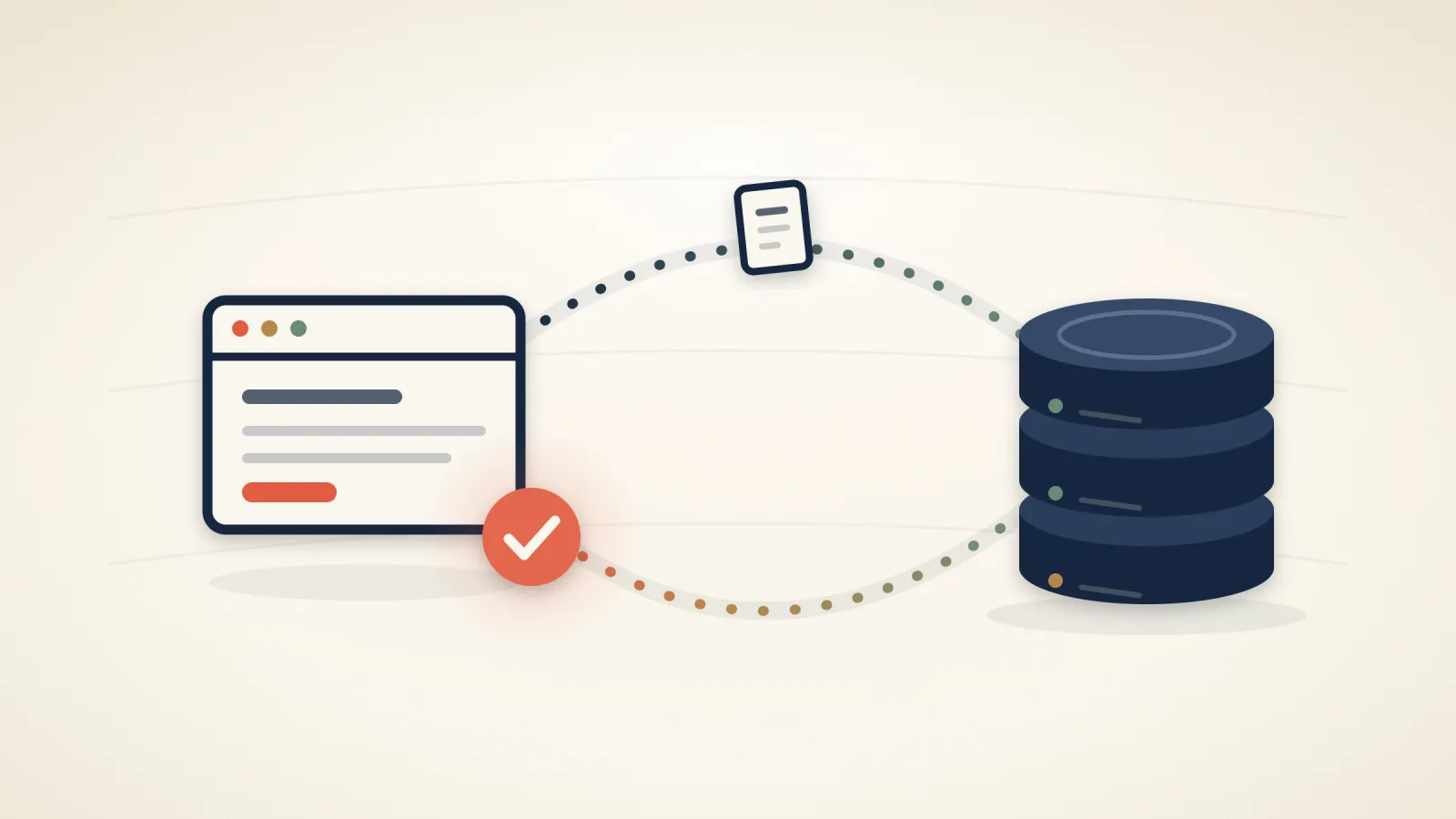
The job runs and captures nothing. Backup software reports that a job finished. It doesn't report that your site was in it. A job can end cleanly after finding no accounts to back up, skipping a database it couldn't read, or stopping at the first file it couldn't open, and the log says "completed" each time.
The copy sits next to the original. A backup plugin that writes its archive into a folder of the same hosting account protects you from a bad update and from very little else. If the account is broken into, the disk fails or the account is closed, the site and its backup go together. The same is true of a host that keeps backups on the server they were taken from.
The history is too short. Most problems aren't noticed on the day they start. Malware that was planted three weeks ago and woke up yesterday is in every one of your last seven daily copies. How far back you can go matters as much as how often a copy is taken.
Half the site is missing. A WordPress site is a folder of files and a database, and either one without the other is not a site. A backup that holds only the files, or leaves out the mailboxes, looks the same in a list of dates as one that holds everything.
The restore is the hard part. Some hosts take backups for their own disaster recovery: they can bring back a whole server, but they won't bring back your one file. Some restore on request, for a fee, in a day or two. Some can only put back the entire account, which also wipes every order and every email that arrived after the copy was taken.
None of this shows until you try to get something back, so the only real check is to try.
Five questions to ask your host#
They fit in one email. Our own answers are further down.
- How often are backups taken, and how far back do they go? Ask for both numbers, and for your plan rather than the most expensive one.
- Where are the copies kept? On the same server, in the same building, or with a different company? If you handle customer data, ask which country as well. We covered why in how to tell if your host is GDPR-compliant.
- What is in them? Files, databases, mailboxes and the account's settings, or only some of those?
- Can I restore by myself, one file or one database at a time, and what does it cost?
- When did you last restore a backup as a test?
The fifth is the one that sorts hosts. A company that tests its restores can answer with a date.
The fifteen-minute test#
You don't need anyone's permission for this, and nothing on your live site gets touched. The aim is to download one file and one database from a backup and look inside them.
1. Find the backup tool. On a cPanel host it lives inside cPanel, usually in the Files section or in a section of its own. Many hosts, including us, use JetBackup; others use cPanel's own Backup and File and Directory Restoration tools. On a host with a different control panel, look for a menu item called Backups or Restore. If you can't find one in five minutes, skip to the one-line request to support below.
2. Read the list of dates before you download anything. Is the newest copy from last night? Does the oldest go back as far as your plan promises? Are there gaps? A list that stopped a month ago has already answered your question.
3. Download one file from the oldest copy. Pick something you would recognise, such as an image from an old blog post or your theme's stylesheet. Take it from the oldest backup on the list, because that tests the history as well as the file. Choose download, not restore, so the live file stays as it is. The tool usually prepares the download in the background, and it arrives as a compressed archive, often ending in .tar.gz. Windows 11 and macOS unpack it with a double-click, and on older versions of Windows the free 7-Zip does it. Open the file inside and check that it is the one you expected.
4. Download the database from the newest copy. A database backup is a text file, usually compressed. Check that its size isn't zero, unpack it and open it in a plain text editor such as Notepad or TextEdit. Then search for something recent that is made of words: the title of your latest post, or the email address on your latest order. A bare order number matches in too many places to tell you anything. Judge the file by what is in it, not by the date written at the end. Ours was eleven days older than the backup and still correct, as we describe below.
5. Write down how long it took and where the buttons were. The next time you do this, you will be in a hurry.
If your host has no tool you can use yourself, send support one line: "Please put a copy of yesterday's index.php and of yesterday's database into a separate folder in my account." Then time the answer.
On our platform, the step-by-step versions are in the Help Center: how to restore a file or folder, which also covers downloading a copy instead of restoring it, and how to restore a database.
Keep one copy that isn't your host's#
Even when all of that checks out, keep a copy of your own. A host's backups cover your mistakes and failed hardware. They don't cover a dispute with the host, a card that expired while you were on holiday, or a mistake made by the host itself. We say so in our own terms: these backups do not replace your own, and we do not promise that any particular backup will exist, be complete or be restorable.
For a small site, a sensible routine is once a month and before any large change. Generate a full backup in cPanel, download it, and keep it somewhere that is not your hosting account. A laptop plus a cloud drive is enough. On our platform the steps are in how to download a backup of your site. Delete the archive from the server afterwards, because while it sits there it counts towards your plan's storage.
What we do, and what happened when we tested it#
Here are our answers to the five questions.
How often, and how far back. Every hosting account is backed up automatically, daily on every plan except Self-Managed Lite, which is weekly. Lite keeps only the latest weekly copy, so if losing up to a week of changes would hurt, it needs your own backups alongside it, or a different plan. Self-Managed Plus keeps 7 days of history, Self-Managed Pro keeps 14, and every Managed plan keeps 30. By the three-week malware example above, only the 30 days reach back far enough. On Plus and Pro, your own monthly copy is what covers that gap. The full table is in backup retention by plan.
Where. Not on the server. Copies go to storage in Amsterdam run by Backblaze, a different company from the one whose data centre houses our servers, and they are encrypted at rest (AES-256) by the storage provider. Backblaze is a US company with a European region, and it is named on our subprocessors page.
What. Website files, databases, the mailboxes that come with your plan and the mail in them, and the account's settings, such as scheduled tasks (cron jobs), SSL certificates and FTP accounts. Two things are not in there because they don't live on the hosting server: Microsoft 365 and Google Workspace mailboxes, which are kept by those providers, and your DNS records, which are held separately in your client area.
Can you restore by yourself, and what does it cost. Yes, from JetBackup in cPanel, and it costs nothing extra: a file, a folder, a database, a mailbox or the whole account, either restored in place or downloaded. On Managed plans restores are part of the service, so we will do it for you if you prefer. Tell support what you need back and from which day.
When did we last test a restore. On 29 September 2026, for this article. We pulled a backup back from storage, unpacked it and checked it against the live site.
The test#
We took one of our own sites, a blog that runs in an ordinary Managed account on the same server as our customers, and requested the previous night's backup from the storage in Amsterdam.
| Step | Result |
|---|---|
| Backup taken | 29 September, 00:00 UTC |
| Requested back | 29 September, 17:43 UTC |
| Ready to open | 40 seconds later |
| Size of the archive | 25 MB |
| Inside | 15,643 files, the database, the SSL certificate, the cron jobs |
Then we compared every file in the backup with the live site using checksums. A checksum is a fingerprint of a file that changes if a single character in the file changes.
- 15,342 files were identical.
- 30 files differed. Every one of them had been edited on the live site after the backup was taken, so the backup held the previous night's version, as it should.
- 271 files were in the backup and no longer on the site, and 145 were on the site and not in the backup. The first group were cache and session files the site had since deleted. The second group had all been created after the backup ran.
- 6 files were older than the backup and not in it. All six are housekeeping files that the hosting platform keeps for its own use, such as a mail quota counter and the PHP selector's own files. None of them holds site content.
The result that looked wrong#
The copy of the database inside that backup (a "dump", in the jargon) was dated 18 September. It was eleven days old, inside a backup taken the night before. That is the "half the site is missing" failure from the top of this article, or it looks just like it.
The backup log had an explanation: the database had not changed since the 18th, so the software had kept the existing dump instead of writing an identical one. But a log saying that everything is fine is what we have just told you not to rely on. So we compared the dump with the live database, table by table. All fourteen tables matched, row for row: five hold the blog's posts, categories and its one user, and nine are empty in both. Nobody had published a post since the 18th. Another site on the same server, whose database had changed, got a fresh dump that same night.
So the backup was correct and the date was misleading. We know both only because we opened it.
What this does not prove#
It was one account on one night, and we unpacked the backup into a separate folder instead of restoring it over a live site. It was also a small site: a shop with several gigabytes of images will take longer than 40 seconds to come back. That makes it a spot check, not a guarantee for every account on every night, and it is why the advice under "Keep one copy that isn't your host's" applies to our customers as much as to anyone else's.
What to do with the result#
If the list of dates is short, the file you downloaded won't open, or support can't say when they last tested a restore, start with the part that depends on nobody else and download your own copy today. Then write to support with what you found and the dates, and ask what they will change.
If everything checked out, put a reminder in your calendar to run the test again in three months, and after any change of plan or host.
If you would rather move, we migrate sites for free, you can compare the plans on the pricing page, and questions about your own setup can go through the contact form.
Related articles
Three flaws that let one hosting account take over a server, and when we closed each one
Between 27 August and 14 September, three flaws were published in cPanel and LiteSpeed that let a single account on a shared server take control of the whole machine. All three are fixed on our servers, and there is nothing for you to install or change. Here is when each fix went in.

All-in-One WP Migration: if you used it to move your site, update it or delete it
The plugin most people use to move a WordPress site has a serious flaw in the part that restores a backup, fixed in version 7.110. If you installed it for a move and never opened it again, it is still there.

How to Tell If Your Web Host Is GDPR-Compliant
A server in Europe does not make your hosting GDPR-compliant by itself. Seven questions and three documents separate hosts that can back the claim from hosts that just put it on the homepage.